How to save recipes from Instagram (without screenshots)
Instagram's save button keeps the reel, not the recipe. Here are three ways to keep recipes you'll actually find again, from free built-in options to turning a reel into a proper written recipe.
1. Instagram Collections (free, built in)
Tap and hold the bookmark under a post, then choose New collection and name it, for example “Dinners”. It's quick, but you can't search ingredients, the recipe is often in a long caption or not written down at all, and posts disappear if the creator deletes them.
2. Copy the caption into Notes
Tap more on the caption, select the text and paste it into a note. It works when the recipe is written out in full. It doesn't help when the caption says “recipe in the comments” or the cook only says the recipe out loud.
3. Share the reel to a recipe app
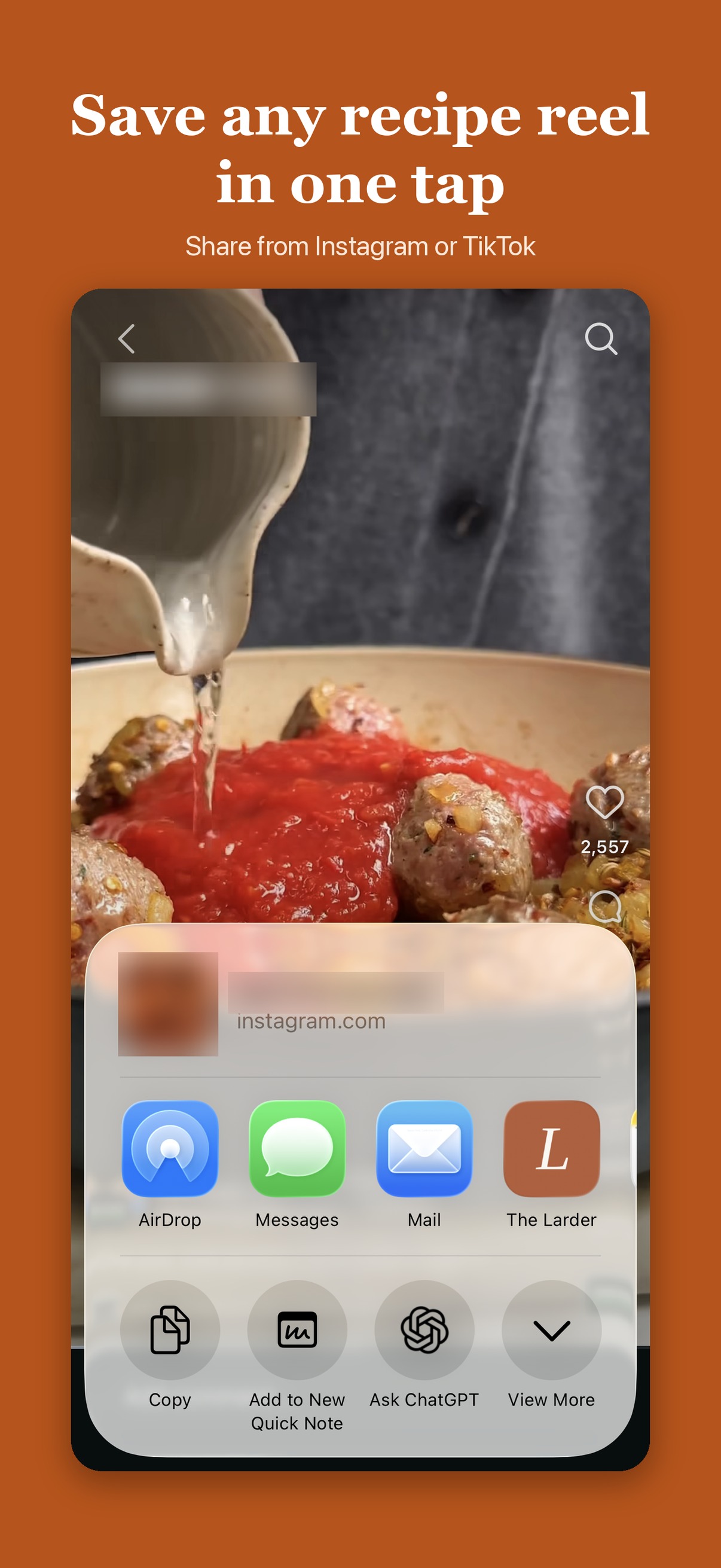
On iPhone, open the reel, tap Share, then choose The Larder. It reads the caption and gives you the ingredients, method and photo as a tidy recipe in your vault, searchable and ready for your meal plan and shopping list.
On a computer, copy the reel's link and paste it into thelarder.app.
When the recipe isn't in the caption
Lots of reels have the recipe only in the voiceover. The Larder's Premium plan listens to the video and writes the recipe down for you. See how to get a recipe that's only said out loud.
The Larder turns recipe reels, TikToks and websites into real recipes in one tap. Free to start.
Get the iPhone appUse it on the webQuestions
Can I save Instagram recipes without the app?
Yes. Paste the reel's link into thelarder.app on any computer or phone browser.
Does it work with private accounts?
No. Only public posts can be read, the same as anyone without an account would see.
Is it free?
Free accounts include 10 AI imports and unlimited recipes added by hand. Premium includes 100 imports a month and video listening.